DNS is the backbone of the Internet. Without it, you cannot find or access any websites unless you know the exact IP address of their host server.
The internet has also become more like a utility rather than a luxury. It is used for work, research, studying, and even recreationally.
However, this increased connectivity also has some risks. It makes our devices susceptible to malware, phishing attempts, obscenity, and extensive tracking.
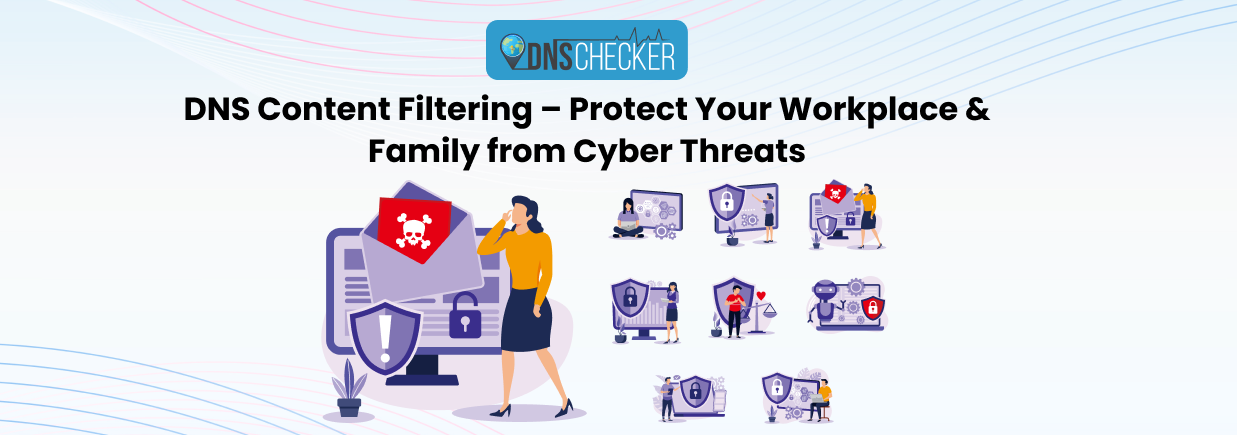
There are many methods of protecting yourself from these threats, but one overlooked method is DNS filtering. Let’s take a look and see how it can protect your workplace and family from cyber threats.
What is DNS Content Filtering and What Does it Do?
DNS Content filtering is a technique to filter content on your network. You can set up DNS filtering at different levels of your network. For example, you could put it on the WiFi access point so that anyone connecting to it gets filtered traffic. Alternatively, install it on an individual device to filter traffic on that device alone.
So, what does DNS filtering do? Well, all that happens is that your DNS resolver checks each IP address to see if it's blocked or not before providing it to your device or network.
For example, if you want to block ads, you can switch your resolver to AdGuard’s DNS. It will prevent ad servers' IP addresses from being accessed on your device, so you won't see any ads.
This makes DNS filtering faster and more effective than traditional URL-based filters. There's no software to install, and nothing slows down your browsing experience.
Why Use DNS Filtering?
DNS filtering can accomplish a lot. You can use it to block a lot of cyber threats. Here are some examples of how you can use DNS filtering.
- Block access to harmful content, such as phishing sites, malware domains, and scam pages.
- Enforce workplace internet policies without intrusive monitoring.
- Protect children from adult or inappropriate content across all connected devices.
- Prevent accidental access to dangerous or illegal websites with minimal technical effort.
Unlike antivirus software, DNS filtering doesn’t rely on detecting viruses after they enter because it prevents users from ever reaching risky websites in the first place.
How DNS Filtering Works
Here’s what happens when you have a DNS filter in place and click on a bad link or ad that leads to malware or a scam website.
- User Enters a Web Address
A user tries to visit a website (e.g., suspicioussite.com). - DNS Resolver Intercepts the Request
Instead of going directly to the site, the request is sent to a DNS resolver. - Resolver Checks Blocklists
The resolver checks if the domain or its IP is on a pre-configured blocklist. - Access is Allowed or Denied
- If clean, the request proceeds normally.
- If blocked, the user is shown a warning or a “blocked page” message.
Some DNS filtering services also provide detailed logs, usage stats, or allow you to create custom rules. So, use those to improve your filters.
How To Set Up DNS Filtering On Popular Platforms
Whether you are on Windows, Android, or Mac, you can set up DNS filtering with ease. Here are some simple steps to follow for setting up a DNS filter on your home or work devices.
1. Windows (10 & 11)
In Microsoft Windows, you can set up a DNS filter from your network settings. This filter is for the Windows device only, not your complete local network.
- Go to Control Panel > Network and Internet > Network and Sharing Center
- Click on Change adapter settings
- Right-click your active connection > Select Properties
- Click on Internet Protocol Version 4 (TCP/IPv4) and hit Properties
- Select Use the following DNS server addresses
- Enter your preferred filtering DNS (e.g., 1.1.1.3 for Cloudflare Family)
- (Optional) Repeat for Internet Protocol Version 6 (TCP/IPv6)
- Click OK and restart your browser
The next time you use your browser, it will use the DNS resolver you have specified.
2. macOS
On a Mac system, you can follow these steps to apply a DNS filter.
- Open System Settings > Network
- Select your connected network (Wi-Fi or Ethernet)
- Click Details or Advanced, then go to the DNS tab
- Click the + button and enter the DNS IPs (e.g., 185.228.168.168)
- Click OK and then Apply
Changes take effect immediately, and no browser restart is required.
3. Android
If you are on an Android device version 9 or higher
- Go to Settings > Network & Internet > Advanced > Private DNS
- Choose the Private DNS provider hostname
- Enter the hostname (not IP) provided by the DNS service
(e.g., family.adguard-dns.com or security-filter.cleanbrowsing.org) - Tap Save
Some devices require the IP address of the DNS server instead of its name. So, change that as you see fit.
If your device doesn’t support this method or a similar one, then you can use a third-party app like Intra or configure the DNS on your router instead.
4. iOS (iPhone & iPad)
Apple doesn’t allow system-wide DNS changes through settings unless using a profile. So, you will have to create or import one first.
Option 1: Use a Config Profile
- Download a DNS configuration profile from a provider like NextDNS or AdGuard.
- Install the profile via Safari
- Go to Settings > General > VPN & Device Management
- Tap the installed profile to enable it
Option 2: Use a Dedicated DNS App
Apps like AdGuard or DNSCloak let you apply filters without rooting.
5. Wi-Fi Routers
Setting up DNS filtering on your router applies protection to all devices on the network. So it's a great option to use in a workplace where manually setting up filtering on each device is unfeasible.
Steps:
- Log in to your router (typically via 192.168.1.1 or 192.168.0.1, or whatever your router’s IP is.)
- Find the DNS settings under WAN, Internet, or Advanced Settings
- Replace the default DNS with your filtering DNS IPs
- Example: Cloudflare Family
- Primary: 1.1.1.3
- Secondary: 1.0.0.3
- Save and restart the router
This is a general approach that may or may not work on every router. You will need to check your provider’s documentation to find specific instructions if your router interface looks different. You can also find tutorials if you know your router’s exact model.
Top DNS Filtering Services You Can Use
Here are some well-known providers offering free or affordable DNS filtering:
|
Provider |
Filtering Options |
Recommended For |
DNS IPs & What They Block |
|
CleanBrowsing |
Security, Adult, Family filters |
Parents, Schools |
- 185.228.168.9, 185.228.169.9 → Security Filter (malware/phishing only) - 185.228.168.10, 185.228.169.11 → Adult Filter - 185.228.168.168, 185.228.169.168 → Family Filter (includes proxies/VPNs) |
|
Cloudflare for Families |
Malware-only or Malware + Adult |
Home Users |
- 1.1.1.2, 1.0.0.2 → Blocks malware only - 1.1.1.3, 1.0.0.3 → Blocks malware + adult content |
|
OpenDNS (Cisco) |
Family Shield, Custom Filtering |
Businesses, Families |
- 208.67.222.123, 208.67.220.123 → Family Shield (pre-configured adult site block) - 208.67.222.222, 208.67.220.220 → Home (customizable filtering) |
|
AdGuard DNS |
Default, Family Protection, Non-filtering |
Privacy-focused Users |
- 94.140.14.14, 94.140.15.15 → Default (ads + malware) - 94.140.14.15, 94.140.15.16 → Family Protection (adds adult content + safe search) |
|
Yandex DNS |
Safe Mode, Family Mode |
CIS/EU Region |
- 77.88.8.88, 77.88.8.2 → Safe (blocks malware/phishing) - 77.88.8.3, 77.88.8.7 → Family (also blocks adult content) |
|
Quad9 |
Security-focused only |
General Users |
- 9.9.9.9, 149.112.112.112 → Blocks known malicious domains (malware, phishing, botnets); no content filtering |
|
UltraRecursive (Neustar UltraDNS Firewall) |
Threat Protection, Family Secure |
Enterprises & Home Users |
- 156.154.70.2, 156.154.71.2 → Threat Protection (blocks malware, ransomware, phishing) - 156.154.70.3, 156.154.71.3 → Family Secure (also blocks adult, gambling, violence) |
To add custom IPs to your DNS filter, you will need to purchase paid services. However, you can do that for free by adding rules to your firewall and listing specific IP addresses to make them inaccessible.
Does DNS Filtering Slow Down My Internet?
No. DNS filtering works at the lookup level and typically adds no noticeable delay. Most of the resolvers we listed are faster than the default resolvers of most ISPs.
You'll also experience faster browsing because filtered DNS servers skip ads and trackers that slow down page loads.
Final Thoughts
DNS content filtering is one of the simplest and most effective ways to protect your digital environment, both at work and at home. It's fast and affordable (often free), and relatively easy to set up.
Whether you want to improve productivity, keep kids safe, or reduce the risk of cyberattacks, a DNS filter can be your first line of defense.