
Use our WiFi QR code scanner to instantly scan WiFi QR codes and view network details.
Scanned Items(0)

| # | Type | Items | Actions |
|---|
Our WiFi QR Scanner lets you scan and decode WiFi QR codes online. Whether you're using a desktop computer, laptop, smartphone, or tablet, our browser-based tool works across all major devices.
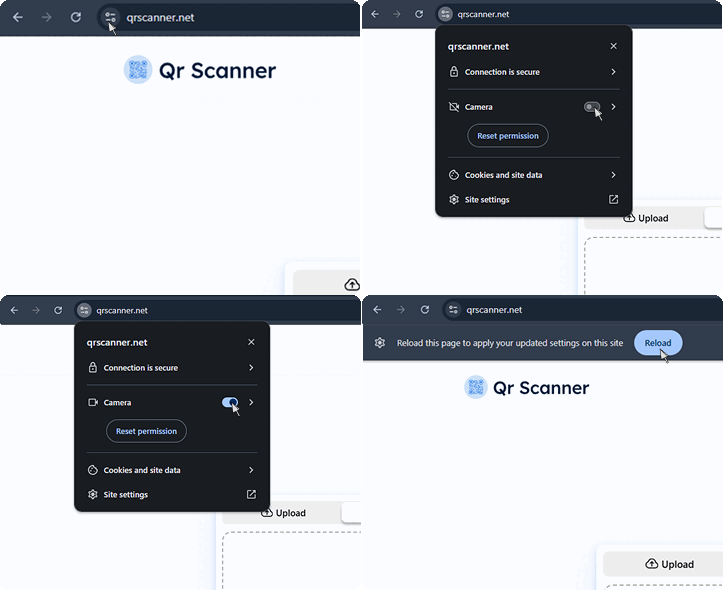
Simply scan a WiFi QR code using your camera or upload an existing image or screenshot to decode it instantly.
WiFi QR codes are commonly used in homes, offices, hotels, restaurants, libraries, cafes, airports, and other public places to simplify WiFi sharing. Instead of manually typing long passwords, you can decode the WiFi QR code to view the stored network credentials in seconds.
Using our WiFi QR code scanner is quite easy. You can scan a WiFi QR code either with your device's camera or by uploading an existing image or screenshot.
You will see that the information contains the following:
And that’s all there is to it. You have now successfully scanned a WiFi QR code.
Here are some of the key benefits of using our tool:
1. Scan QR codes from images and screenshots. Upload a saved image or screenshot containing a WiFi QR code and decode it instantly.
2. Use live scanning or capture mode. Scan WiFi QR codes in real time with your camera or capture an image for decoding.
3. Works across all major devices. Access the tool from Windows, macOS, Linux, Android, iPhone, or iPad using a modern web browser.
4. No app or software installation required. Everything runs securely in your browser, so you can start scanning immediately.
5. View complete WiFi details. Instantly extract the network name (SSID), password, encryption type, and hidden network status.
6. Free and easy to use. Scan and decode WiFi QR codes without creating an account or paying any fees.
7. Perfect for devices without built-in QR scanners. Easily decode WiFi QR codes on desktop computers, laptops, and older smartphones.
A WiFi QR code is a type of QR code that stores the information required to connect to a wireless network. Instead of manually entering the network name and password, you can simply scan the WIFI QR code to view or use the encoded WiFi credentials.
That’s because our scanner doesn’t automatically connect you to the network. It just shows you the SSID and password. You have to copy the password and enter it for the right SSID through your network settings.
Yes, our WiFi QR scanner allows you to paste, upload, or drop images and screenshots of QR codes and decode them effortlessly.
No, your credentials or data are not saved. Even the QR codes you scan or upload are deleted from the servers within 24 hours.